
How to get your Discord token
To export Discord channels you have access to, ExportComments authenticates with your own Discord token. Here's the one-click way, the manual way, and how to keep your token safe.
Discord doesn't use a normal session cookie — it authenticates with an authorization token. To export the channels, DMs and servers you can already see, ExportComments needs that token so it can act as you. Here's the easy way to provide it, the manual way, and how to keep it safe.
What is a Discord token?
Your Discord token is a string Discord issues to your browser when you log in. Every request your client makes carries it in an Authorization header so Discord knows it's you. Handing it to ExportComments lets the exporter read exactly what your account can read.
⚠️ Treat your token like a password. Unlike a single-site cookie, a Discord token grants full access to your account — so only ever use your own token, never paste someone else's, and never share yours. If you ever want to revoke it, log out of Discord (or change your password) and a new token is issued.
The easy way: auto-fill with the Chrome extension
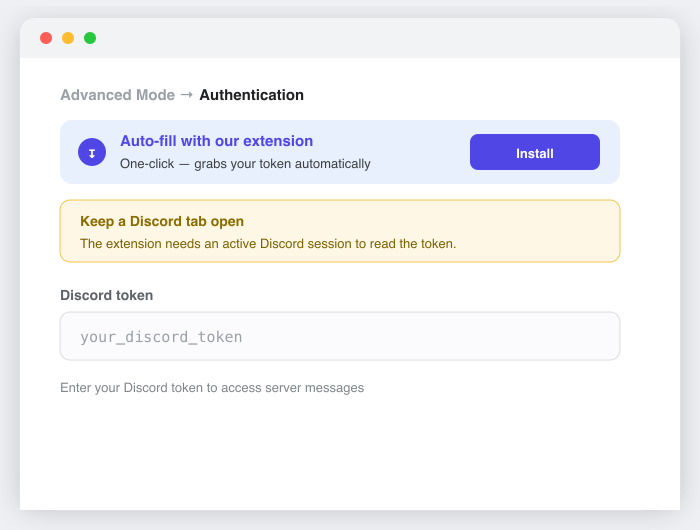
The simplest option is to let the free ExportComments Chrome extension read the token from your logged-in session — no developer tools, no copy/paste.
- Install the Chrome extension and stay logged in to Discord in the same browser.
- Keep a Discord tab open — the extension needs an active Discord session to read the token.
- On ExportComments, open Advanced Mode → Authentication and click the one-click auto-fill button.
The manual way: copy the token from the Network tab
If you'd rather not install the extension, you can read the token yourself from your browser's developer tools.
Step 1: Log in to Discord on the web
Open discord.com in your desktop browser and sign in.
Step 2: Open developer tools → Network
Press Ctrl+Shift+I (⌘⌥I on Mac), or right-click → Inspect, then click the Network tab.
Step 3: Reload and filter for /api
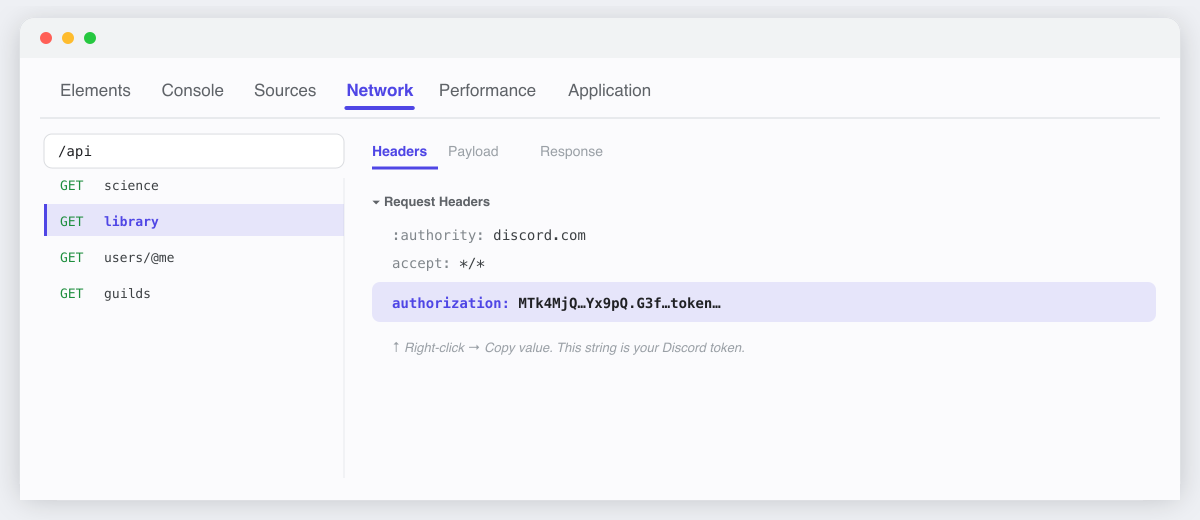
Press F5 to reload so requests appear, then type /api in the filter box. Click almost any request in the list (for example library or messages).
Step 4: Copy the Authorization header
Open the Headers tab, scroll to Request Headers, and find the line labelled authorization. That value — a long string of letters, numbers and dots — is your Discord token. Right-click → Copy value.
Tip: The Network tab is the most reliable method and never breaks. If you'd rather copy the token in one step, use the developer-console method below.
Step 5: Paste it into ExportComments
On the Discord export page, open Advanced Mode → Authentication and paste the value into the Discord token field. Add your channel or server URL and click Start Export Process.
The fast way: the developer console
If you're comfortable with developer tools, a single command copies your token straight to the clipboard. This works on discord.com in a browser — not the desktop app.
Step 1: Open the console
While logged in to discord.com, press Ctrl+Shift+I (⌘⌥I on Mac) and click the Console tab.
Step 2: Allow pasting
Discord blocks pasting into the console by default and shows a red “Self-XSS” warning. If you see it, type allow pasting and press Enter first.
Step 3: Paste this snippet and press Enter
(() => {
  let token;
  window.webpackChunkdiscord_app.push([[Symbol()], {}, (req) => {
    for (const id of Object.keys(req.c)) {
      const exp = req.c[id]?.exports;
      const t = exp?.default?.getToken?.() ?? exp?.getToken?.();
      if (typeof t === "string") token = t;
    }
  }]);
  if (token) { copy(token); console.log("%c✓ copied to clipboard:", "color:#5865F2", token); }
  else console.warn("No token found — use the Network tab method instead.");
})();
On success you'll see ✓ copied to clipboard and the token is already on your clipboard — paste it straight into the ExportComments token field. If it logs “No token found”, Discord has changed its internals since this was published; fall back to the Network tab method above, which always works.
Common workflows
- Archive a channel — export an entire channel's message history to Excel, CSV or JSON, with authors, roles, attachments and reactions.
- Back up a private server — capture members-only channels you have access to.
- Save a DM thread — export direct messages for your own records.
Plan limits & API access
Results per export by plan: Free 100 / Personal 5,000 / Premium 50,000 / Business 250,000. See Pricing. The token can also be supplied via the REST API under options.cookies (Premium and Business).
FAQ
- Is a Discord token the same as a cookie?
It plays the same role — proving you're logged in — but it's an authorization token, not a site cookie. See how to get your session cookies for other platforms like Facebook and Instagram. - Does ExportComments get my password?
No. The token proves your session; it doesn't contain your password or email. - Why did my token stop working?
Tokens are invalidated when you log out or change your password. Grab a fresh one and paste it again. - The extension can't find my token.
Make sure a Discord tab is open and you're logged in in the same browser, then retry — the extension reads the token from that active session. - Is it safe to share my token?
Never. A Discord token grants full access to your account. Only use your own, and don't paste it anywhere except the ExportComments token field.
Watch it in action
Here's a short walkthrough of exporting a Discord chat with your token: